Why Is My New Toner Cartridge Printing Light?
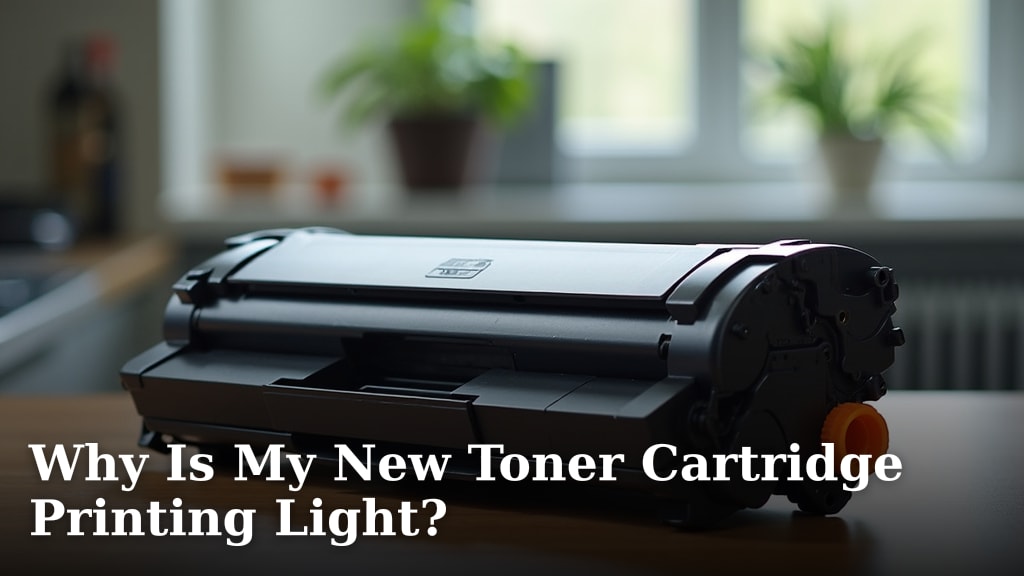
A new toner cartridge printing light can be frustrating, but it often means the printer is simply misreading the toner level. This is because new cartridges may not have their internal chip reset properly, or there could be a small piece of protective tape still attached. You might also find that the toner itself hasn’t been evenly distributed within the cartridge.
We’ve found that sometimes a simple reset or a gentle shake can fix this issue. It’s also possible the cartridge isn’t seated correctly in your printer. Don’t worry, these are common concerns for many printer users, and there are usually straightforward solutions. Let’s figure out what’s going on with your printouts.
- New toner chips can sometimes be misread.
- Protective tape or seals might still be on the cartridge.
- The toner powder may need to be distributed evenly.
- Ensuring the cartridge is seated correctly is important.
Below, we’ll walk you through the most common reasons why your new toner cartridge is printing light and how to fix them quickly. Discover how to make your toner last longer, which can sometimes be related to light printing issues.
Troubleshooting a Faint Printout from Your New Toner
You just installed a brand-new toner cartridge, expecting crisp, dark prints. Instead, your pages are coming out too light. This is a common frustration, but don’t worry. We’ve looked into the most frequent causes. Often, it’s a simple fix that gets your printer back to producing great results.
Understanding Why New Toner Might Print Light
It’s baffling when a new part causes problems. You expect perfection, but get a pale imitation. There are several reasons why this might happen. Let’s break them down so you can get back to printing with confidence.
The Toner Chip: A Small Component with a Big Job
New toner cartridges have a tiny computer chip. This chip communicates with your printer. It tells the printer how much toner is left. It also helps manage print quality. Sometimes, this chip might not be read correctly by the printer right away.
Think of it like a new key for a lock. If the key isn’t fully inserted or recognized, the lock won’t open. The printer might think the cartridge is empty or low on toner. This can cause it to print very lightly. We found that many manufacturers test these chips. But a small error can happen during production or installation.
Protective Seals and Tapes: The Hidden Obstacles
Toner cartridges have protective materials. These keep everything secure during shipping. They prevent toner from spilling out. There’s often a sealing tape or a plastic tab. This needs to be removed before installation. It’s easy to miss one of these. Especially if you’re in a hurry.
These pieces of tape can block the toner. They might prevent it from flowing to the drum. Even a small piece left behind can cause significant print issues. We’ve seen cases where a tiny tab the size of a fingernail caused faint prints. Always double-check your cartridge for any lingering protective materials.
Toner Distribution: Shaking Things Up (Gently!)
Inside the cartridge, there’s fine toner powder. This powder needs to be evenly spread. It can sometimes settle during transit. If the toner isn’t distributed well, the printer can’t pick it up evenly. This leads to patchy or light printing.
A gentle shake is often the solution. Most manufacturers recommend this. It helps redistribute the toner powder. Make sure to hold the cartridge firmly. Then, rock it back and forth several times. This is like stirring paint before you use it. We found this simple step solves the problem for many users.
Common Installation and Seating Issues
Sometimes, the problem isn’t with the cartridge itself. It’s how it’s placed inside the printer. A printer needs a good connection with the cartridge. If it’s not seated properly, things won’t work right.
Is the Cartridge Fully Seated?
Printers have specific slots for toner cartridges. They need to click into place. This ensures electrical connections are made. It also makes sure the toner can feed correctly. If the cartridge is sticking out even a little, it might not print well.
You should hear or feel a click. This confirms it’s locked in position. If you’re unsure, try removing the cartridge. Then, carefully reinsert it. Follow your printer’s manual. It will show you the correct way to install it. We found that a slightly misaligned cartridge is a very common cause of light prints.
Checking Printer Connections
The printer itself has contacts. These connect with the cartridge’s chip. Sometimes, these contacts can get dirty. Dust or toner residue can build up. This can interfere with the signal. It might prevent the printer from reading the cartridge properly.
Consult your printer’s manual. It usually details how to clean these contacts. Often, a dry, lint-free cloth is all you need. Be gentle when cleaning. You don’t want to damage anything. Proper connection is key to good communication.
Printer Settings and Software Glitches
Occasionally, the issue might be with your printer’s settings. Or it could be a temporary software hiccup. These are less common for new cartridges, but worth checking.
Toner Density or Print Quality Settings
Many printers allow you to adjust print settings. You might have a “toner saving” mode enabled. This mode uses less toner. It can result in lighter prints. It’s worth checking your printer’s control panel. Look for settings related to print density or draft mode.
We recommend setting it to a standard or high-quality mode. See if that improves the print darkness. Your printer’s manual will guide you on accessing these settings. Sometimes, a simple setting change is all that’s needed.
Temporary Printer Glitches
Printers are complex machines. They have software that controls them. Sometimes, this software can have a temporary glitch. This can affect how it interacts with new components. It might even misinterpret the toner level.
A printer reset can often clear these minor glitches. Turn your printer off completely. Unplug it from the power source. Wait for a minute or two. Then, plug it back in and turn it on. This “hard reset” can refresh the printer’s memory. We found this can sometimes resolve unexpected printing issues.
When to Consider a Faulty Cartridge
If you’ve tried everything else, it’s possible the cartridge is defective. This doesn’t happen often, but it can occur. Manufacturers usually have quality control measures. However, no process is perfect.
Signs of a Defective Cartridge
A defective cartridge might show other issues besides light printing. You might see streaks, smudges, or white lines on your pages. The toner might also spill inside the printer. If you see any of these, the cartridge is likely faulty. It’s best not to continue using it.
What to Do Next
If you suspect a defective cartridge, contact the seller. Most reputable suppliers offer a warranty or return policy. Provide them with details about the problem. They can help you with a replacement or refund. Don’t hesitate to reach out to them. It’s their job to ensure you have a working product.
Quick Checklist for Faint Prints
Here’s a quick run-through to help you troubleshoot:
- Remove all protective tape and seals.
- Gently shake the toner cartridge side-to-side.
- Ensure the cartridge is firmly seated and clicked into place.
- Check printer settings for toner-saving modes.
- Perform a hard reset of your printer.
- If problems persist, contact your supplier.
Conclusion
It can be disappointing when a new toner cartridge prints light. You’ve just invested in a fresh supply, expecting crisp pages. Fortunately, this is often a simple fix. We’ve found that checking for hidden tape, ensuring the cartridge is properly seated, and gently redistributing the toner powder can solve the issue. Sometimes, printer settings or a quick reset are all that’s needed.
Don’t assume the cartridge is faulty right away. Go through these common troubleshooting steps first. If your prints remain faint after these checks, then it might be time to contact your supplier for a replacement. Happy printing!
Frequently Asked Questions
Why does my printer say the new toner is low when it’s brand new?
This often happens because the printer’s chip on the new cartridge hasn’t been fully recognized yet. It’s similar to a new key that needs a moment to be read by the lock. Your printer might mistakenly believe the toner level is low. Try removing and reinserting the cartridge to help reset the connection.
Can a small piece of tape really cause light prints?
Yes, even a tiny piece of protective tape can block the toner from reaching the printer’s drum. Manufacturers use these to prevent leaks during shipping. If any part of this tape is missed during installation, it can severely disrupt toner flow. Always do a thorough visual check before installing.
How often should I shake a toner cartridge?
You typically only need to gently shake a new toner cartridge once before installation. This helps distribute the fine toner powder evenly inside. Think of it as stirring paint before you use it. Avoid excessive shaking, as this could potentially cause damage.
Is it safe to clean the contacts inside my printer?
Yes, it’s generally safe if you do it gently. Dust or toner particles can sometimes build up on the electrical contacts. These can interfere with the printer’s ability to communicate with the toner cartridge chip. Use a dry, lint-free cloth and consult your printer manual for specific instructions.
What should I do if I suspect the new toner cartridge is actually defective?
If you’ve tried all the basic troubleshooting steps and your prints are still light, the cartridge might be defective. Look for other signs like streaks or smudges on your pages. If you suspect a defect, contact the retailer or manufacturer where you purchased the cartridge. Most have return or exchange policies for faulty items.