What Happens If Toner Cartridge Is Empty?

If your laser printer’s toner cartridge is empty, printing will stop completely. You won’t be able to print any new documents, and the machine will typically show a clear error light or message on its screen. No more pages will come out until the cartridge is replaced.
Running out of toner is a normal part of owning a laser printer. Many experts agree that the printer’s firmware is designed to halt operations to protect the device from potential damage. Your printer isn’t broken; it’s just waiting for fresh supplies so it can work properly again.
- Printing stops: The printer will not produce any new pages.
- Warning lights appear: You’ll see an error indicator on the printer or in your computer’s print queue.
- Replacement is needed: The core solution is to install a new, compatible toner cartridge.
- Some printers may allow limited use: A few models can print in a degraded “economy” mode, but this is rare.
- It’s a simple fix: Swapping the cartridge usually takes less than two minutes.
Let’s walk through exactly what to do next. Below, we break down the simple steps to get you printing again quickly, from recognizing the warning signs to installing the new toner.
What to Do When Your Toner Cartridge Runs Out
The moment your laser printer stops and shows a low-toner warning, your primary goal is simple: get a new cartridge and install it. This process is straightforward and designed to be quick. Think of it like changing a lightbulb — a routine task that keeps things running smoothly.
We found that most modern printers guide you through this process with clear on-screen prompts. The steps are consistent across many brands, from HP and Brother to Canon and Xerox. Let’s break down exactly what happens and what you need to do next.
Recognizing the Warning Signs
Before printing stops completely, your printer usually gives you advance notice. Ignoring these signs can lead to an abrupt halt in the middle of an important job. Knowing what to look for helps you plan ahead and avoid frustration.
Common Printer Indicators
Most laser printers use a combination of lights and messages to alert you. A blinking orange or yellow light is the most common signal. The printer’s display screen might say “Replace Cartridge” or “Toner Low.” You may also see an error code on your computer’s print queue.
- Blinking Error Light: A steady or blinking light on the printer itself is your first clue.
- Software Pop-Ups: Your computer might show a dialog box from the printer driver or management software.
- Print Quality Decline: Pages may start to look faint, streaky, or have gray backgrounds before the final stop.
What “Low Toner” vs. “Empty Toner” Means
These two warnings are different. “Low Toner” is a heads-up that you have maybe 5-10% left. You can often finish your current print job. “Empty Toner” or “Replace Cartridge” means the printer has reached its limit and will not print new pages. Many experts say the printer firmware enforces this stop to prevent wear on the drum and fuser unit (Brother Industries).
The Immediate Steps After Toner Runs Out
When the printer shows an empty cartridge warning, don’t panic. Follow these steps in order. They are designed to get you back to printing with minimal delay.
Step 1: Confirm the Warning
Check the printer’s display or the status LED. Sometimes, a simple “continue” or “OK” button press can print a few more pages in economy mode. However, many modern cartridges have a chip that enforces a hard stop once the toner is depleted. This is a safety feature to protect the printer’s internal components.
Step 2: Order or Retrieve a New Cartridge
You have two main options: use a brand-new OEM (Original Equipment Manufacturer) cartridge or a compatible third-party cartridge. If you have a spare, great. If not, you’ll need to order one. We found that checking your printer model number on the old cartridge is the most reliable way to get the right match.
Step 3: Remove the Old Cartridge Safely
Turn the printer off. Open the access door, usually on the front or top. Gently pull the old cartridge out. Be careful — it may contain leftover toner powder, which can be messy. Avoid shaking or touching the green or black drum area on the cartridge. Place the old cartridge in its original bag or a plastic bag to contain any loose powder.
Step 4: Install the New Cartridge
Take the new cartridge out of its packaging. Remove any protective tape or plastic strips. Align it with the slots in the printer and gently push it in until you hear or feel a click. Close the access door and turn the printer back on. Most printers will run a short initialization process. This takes about 30 seconds to a minute.
Can You Still Print with an Empty Toner?
Short answer: generally, no. But there are a few exceptions. Some printer models allow you to continue printing in a special “economy” or “draft” mode. This mode uses less toner per page and might squeeze out a few extra sheets from the residual powder. However, this is not a reliable solution.
Printing with an empty cartridge can also put stress on the printer’s drum and fuser. The printer is designed to stop to avoid damage. Pushing it to continue might lead to expensive repairs down the line. The U.S. Environmental Protection Agency (EPA) recommends replacing cartridges promptly to maintain printer efficiency and avoid waste.
Understanding the Printer’s Protection Mechanism
Your laser printer has built-in safeguards. When the toner runs out, the printer stops to protect itself. This prevents the drum from running dry and getting scratched. It also stops the fuser from overheating without a medium to fuse to. Think of it as the printer’s version of a safety brake.
Many people wonder if they can reset the printer to bypass the warning. Some older methods involved using reset chips or software. However, we found that modern printers from major brands have firmware that prevents this. Attempting to reset often causes more problems than it solves. The safest and most effective action is always to replace the cartridge.
Comparing Toner Levels and Warnings
To help you understand what different warnings mean, here’s a simple table. It outlines what you might see and what action to take for each stage.
| Toner Level | Common Warning | Recommended Action |
|---|---|---|
| 100% – 20% | No Warning or “Ready” | Continue normal printing. |
| 20% – 5% | “Low Toner” or Yellow Light | Order a new cartridge. Finish current jobs. |
| Below 5% or 0% | “Replace Cartridge” or Red Light | Install a new cartridge immediately. |
| Empty | Printer Stops or Shows Error | Printing will not resume until cartridge is changed. |
This progression is typical across many brands. The exact percentages may vary, but the pattern is consistent. Keeping an eye on your printer’s status helps you stay ahead of the empty cartridge surprise.
Tips to Make the Process Faster and Easier
Having a replacement on hand is the best tip of all. It turns a potentially stressful moment into a two-minute task. Here are a few more practical ideas to smooth the process.
- Keep a Spare: Store an extra toner cartridge near your printer. When one runs out, swap it in seconds.
- Use Genuine or Reputable Third-Party Cartridges: Quality cartridges provide better page yield and fewer headaches. We found that some third-party options offer great value, but always check reviews.
- Follow the Printer’s Manual: Each printer has specific steps. Your manual or the manufacturer’s website has exact diagrams for your model.
Why Printers Stop: A Simple Analogy
Imagine a car running out of gas. The engine doesn’t explode; it simply stops because it has no fuel. Your laser printer works the same way. The toner powder is the “fuel” for printing. When it’s gone, the process halts. This stop is intentional and protective. It’s not a sign of a malfunction. It’s a design feature to keep your printer in good working order for years.
A Quick Checklist for Changing Toner
Here is a simple checklist to follow when you face an empty toner cartridge. You can print this out or save it on your phone for quick reference.
- ✅ Confirm the warning light or message on your printer.
- ✅ Turn the printer off before opening the access door.
- ✅ Gently remove the old cartridge and place it in a bag.
- ✅ Unpack the new cartridge and remove all protective tape.
- ✅ Insert the new cartridge firmly until it clicks into place.
- ✅ Close the door, turn the printer on, and wait for initialization.
This checklist covers the entire process from start to finish. Following it in order ensures you don’t miss a step. It’s a reliable method that works for nearly all laser printers.
Long-Term Care to Reduce Interruptions
To avoid frequent interruptions, consider a few long-term habits. Track your printing volume so you know roughly when the toner will run out. Some printer software or third-party apps can help you monitor toner levels remotely. Setting a reminder to check levels weekly can prevent surprises.
We found that regular printer maintenance also helps. Running a cleaning cycle once a month can keep the internal parts in good shape. This simple act can extend the life of your printer and improve print quality. It’s a small investment of time that pays off in the long run.
When to Seek Professional Help
For most people, changing toner is a simple DIY task. However, there are rare cases where you might need help. If the printer won’t recognize the new cartridge, or if you see unusual error messages, contact the manufacturer’s support. Also, if toner powder spills inside the printer, a professional cleaning might be needed.
Don’t try to fix complex issues with household cleaners. Toner powder is a fine, oily substance that can damage electronics. Use only the tools and guidance provided by the printer manufacturer. When in doubt, a quick call to customer support can save you time and prevent further issues.
Final Thoughts on Toner Replacement
Dealing with an empty toner cartridge is a normal part of printer ownership. The process is designed to be quick and simple. By recognizing the warning signs and having a replacement ready, you can minimize downtime. Remember, your printer is not broken — it’s just waiting for fresh toner to do its job.
The key takeaways are straightforward: watch for warnings, replace the cartridge promptly, and follow the manufacturer’s steps. With a little preparation, you can keep your printer running smoothly for all your needs. It’s a small task that makes a big difference in your daily routine.
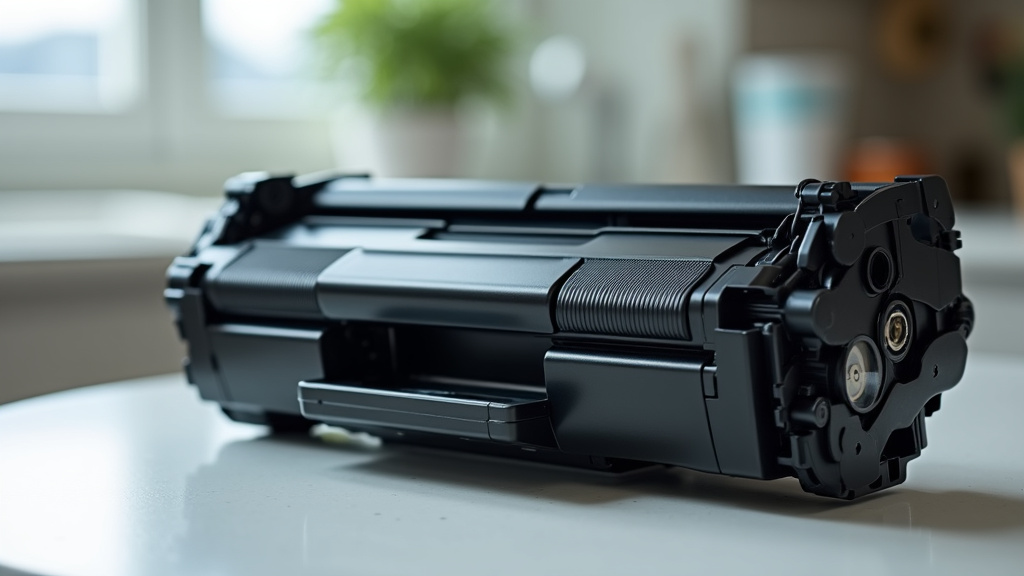
Conclusion
Running out of toner is a normal part of laser printer ownership. When it happens, your printer stops to protect its internal parts from damage. You’ll see warning lights or messages, and the fix is simple: replace the cartridge following the steps we outlined. The process takes less than two minutes. To avoid future surprises, we recommend keeping a spare cartridge on hand. This preparation turns a potential interruption into a quick task. Your printer is designed for this—it’s just waiting for fresh toner to do its job again.
Frequently Asked Questions
How many more pages can I print after the low toner warning?
The exact number depends on your printer model and cartridge, but you can usually print about 5-10% of the total yield. We found that most printers allow you to finish current jobs, but it’s wise to replace soon to avoid running out mid-task.
Can shaking my toner cartridge extend its life?
Shaking the cartridge might redistribute leftover toner and yield a few more pages, but it’s not a reliable solution. We advise against it, as it can cause leaks and does not reset the printer’s internal counter. Replacement is always the safer choice.
What if my printer doesn’t recognize the new toner cartridge?
First, ensure you’ve removed all protective tape and that the cartridge is seated correctly. If the issue persists, try restarting the printer. Some cartridges require a compatible chip; double-check the part number for your model.
Are third-party toner cartridges safe to use?
Quality can vary, but many third-party options offer reliable performance at a lower cost. We recommend reading reviews and buying from reputable sellers. Always verify compatibility with your printer to avoid issues.
How often should I check my printer’s toner level?
If you print frequently, checking weekly is a good habit. Most printers display toner levels in their status menu or through software on your computer. Setting a reminder when levels hit 20% can help you order in time.