How to Check Toner Level Without Printing

Yes, you can absolutely check your printer’s toner level without printing a test page. Many modern printers offer built-in software that displays toner status directly on your computer. You can also often find this information through your printer’s control panel if it has a screen.
Knowing your toner levels ahead of time helps you avoid the frustration of a printer running out of ink mid-task. It’s a simple step that can save you time and ensure your work flows smoothly. We’ve found that checking this way is much more convenient than waiting for a faded printout.
- Check toner via your computer’s printer software.
- Use the printer’s built-in screen and menus.
- Some printers send low-toner email alerts.
- Check the manufacturer’s mobile app, if available.
Let’s walk through the common methods to see exactly how you can check your toner level without wasting paper.
Understanding Your Printer’s Toner Supplies
Running out of toner unexpectedly can be a real headache. You’re in the middle of printing an important document, and suddenly the pages start looking faded or disappear altogether. Thankfully, most modern printers make it pretty simple to check your toner levels before this happens. You can avoid that surprise much like you’d check your car’s fuel gauge before a long trip.
Most printer manufacturers build in features to keep you informed. These features are designed for convenience. They help you plan ahead and make sure you have replacement toner cartridges on hand when needed. We found that paying attention to these alerts can save a lot of last-minute stress.
Checking Toner Via Your Computer’s Printer Software
This is often the easiest and most direct method. Your printer usually comes with its own software installed on your computer. This software acts like a dashboard for your printer. It lets you manage settings, perform maintenance, and, importantly, check supplies.
Accessing the Printer Software
The exact steps can vary slightly depending on your printer brand and operating system. However, the general process is quite similar. You’ll typically find this software by looking for your printer’s name in your computer’s applications or settings.
For Windows users, you can often find it by going to Settings, then Devices, and then selecting your printer. From there, look for an option like “Printer properties,” “Printing preferences,” or a specific application related to your printer model. It might be listed under “Apps” or “Programs and Features” in your control panel.
On a Mac, you can usually access printer settings through System Preferences, then Printers & Scanners. Select your printer from the list. You might see an “Options & Supplies” button or a tab that gives you access to these details. Sometimes, there’s a separate utility program that launches from your dock or applications folder.
Locating Toner Level Information
Once you have the printer software or utility open, look for sections labeled “Supplies,” “Status,” “Toner Level,” or “Consumables.” You should see a visual representation, like a bar graph or percentage, for each toner cartridge installed. This display is usually quite clear. It often shows color-coded indicators – green for full, yellow for low, and red for empty or very low.
We found that this screen is also where you can often see estimated page yields remaining. This gives you a good idea of how much printing you can still do before a cartridge needs replacing. It’s like having a built-in prediction for your printer’s needs.
Using Your Printer’s Built-In Control Panel
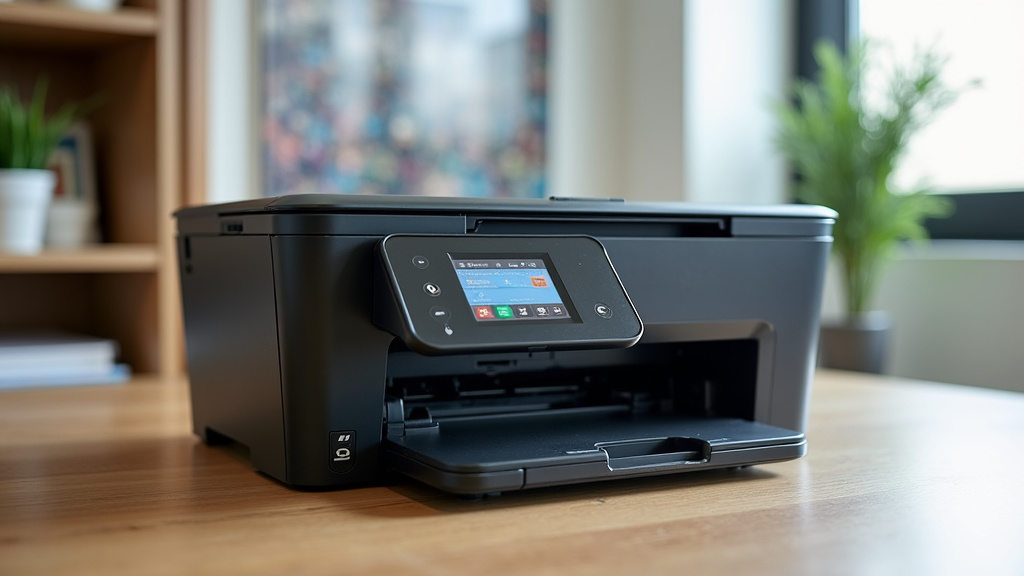
Many modern printers, especially laser printers, come with an LCD screen and buttons directly on the unit. This control panel provides direct access to printer functions, including supply status, without needing your computer.
Navigating the Printer Menus
Turn on your printer and wait for it to initialize. Then, navigate through the menus using the arrow keys or touchscreen. You’re generally looking for options like “Setup,” “Settings,” “System,” or “Supplies.” Sometimes, the toner level is shown right on the main screen when the printer is idle.
If not, drill down into the menus. Look for a sub-menu related to “Supplies,” “Consumables,” or “Status.” Many printers will then display the estimated toner levels for each color or cartridge. It’s a straightforward process, much like adjusting settings on a microwave.
What If My Printer Doesn’t Have a Screen?
Some simpler, more basic printer models might not have a built-in display. In these cases, you’ll almost certainly need to rely on the computer software method described earlier. Don’t worry, though; it’s still a very common and effective way to check your toner. You can also check your printer’s manual if you’re unsure how to navigate its specific control panel.
Leveraging Manufacturer Mobile Apps and Online Portals
In today’s connected world, many printer manufacturers have developed mobile apps and online portals. These tools offer remote access to your printer’s status, including toner levels. It’s a convenient option if you’re away from your computer or printer.
Check your printer manufacturer’s website. They will usually list any available mobile apps for your specific model. Download the app, follow the setup instructions to connect it to your printer (often via Wi-Fi), and you should be able to monitor toner levels and other diagnostics. Some portals also allow you to order new cartridges directly.
Understanding Low Toner Alerts
Most printer software and mobile apps can be configured to send you notifications. These alerts let you know when a toner cartridge is running low, or when it’s critically low. This is a fantastic feature for staying ahead of supply needs.
You can usually enable or disable these alerts within the printer’s software settings. You might also be able to choose how you receive them – via pop-up messages on your computer, email, or through the mobile app. We found that setting up these alerts is a great way to ensure you never forget to check your toner levels.
A Quick Checklist to Confirm Your Toner Status
Here’s a handy checklist to get you started:
- Check your printer’s built-in display screen for a “Supplies” or “Toner Level” menu.
- Launch the printer’s software application on your computer. Look for “Status” or “Supplies.”
- Download and set up your printer manufacturer’s mobile app, if available.
- Configure low toner alerts through the software or app.
- If your printer is an older model, consult its user manual for specific instructions.
By using these methods, you can easily keep track of your toner. It helps prevent those frustrating moments where your printer stops working mid-task. Knowing your levels in advance means you can order or replace cartridges smoothly and keep your printing flowing. By using these methods, you can easily keep track of your toner and make your toner last longer.
Conclusion
You now know several easy ways to check your printer’s toner level without wasting paper. Using your computer’s software, the printer’s own screen, or a mobile app can all give you a clear picture of your supplies. This simple habit prevents unexpected print failures and saves you time. By staying informed about your toner status, you can ensure your printing tasks are always smooth. Your next step should be to try one of these methods today to see your current toner levels.
Frequently Asked Questions
How often should I check my toner level?
It’s a good idea to check your toner level at least once a month, or whenever you have a large printing job coming up. This way, you’ll have plenty of notice if a cartridge is running low. You can also rely on low toner alerts if your printer supports them.
What if my printer’s software doesn’t show the toner level?
If the software on your computer doesn’t display the toner level, check your printer’s physical control panel if it has a screen. Many models also offer a mobile app or a web portal. Your printer’s user manual is also a reliable source for specific instructions.
Can I check toner levels on a really old printer?
Older printers might not have the same digital features as newer models. For very old printers, you may need to rely on the printer’s manual or simply wait for the print quality to degrade before replacing the toner. However, most printers made in the last 10-15 years should have some form of status check.
Will checking toner levels drain my printer’s battery?
Checking toner levels uses very minimal power, similar to waking up your printer for a moment. It will not significantly impact your printer’s battery life, if it even has a removable battery. The process is designed to be quick and efficient.
Is there a difference between toner and ink levels?
Yes, there’s a key difference. Toner is used in laser printers and is a dry powder. Ink is used in inkjet printers and is a liquid. The methods for checking levels are similar – through software or the printer’s display – but the supplies themselves are different types of printing material.