How to Tell If Toner Cartridge Is Low: Explained
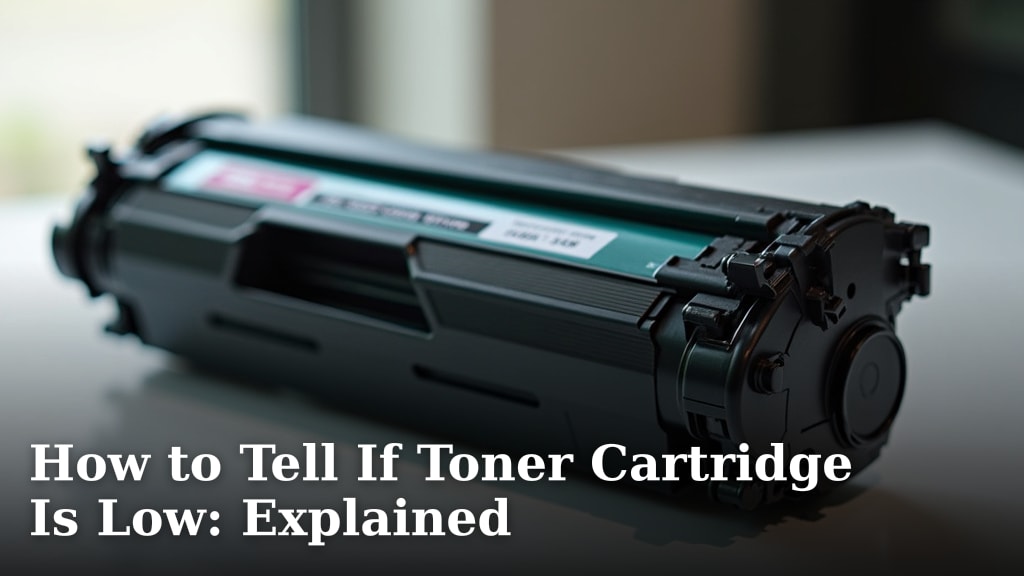
You can often tell if your toner cartridge is low by a printer’s warning message or by seeing faded print on your pages. Your printer is designed to alert you before the toner runs out completely. This helps you avoid a sudden paper jam or incomplete printouts.
Most modern printers have built-in sensors that monitor toner levels. They communicate this information to you through your computer or directly on the printer’s display screen. It’s a helpful feature that saves you from guessing when it’s time to order a new toner.
- Look for on-screen alerts from your printer.
- Check for fading or light print on your documents.
- Some printers have a toner level indicator in their software.
- Consider the age and usage of your current cartridge.
Let’s walk through the common signs and how to check your toner levels step by step so you’re never caught off guard.
Figuring Out When Your Toner is Running Low
It’s that moment of dread: you hit print, and instead of crisp text, you get faint grey lines or even blank pages. You need to know when your toner is getting low before it completely dies on you. Fortunately, your printer usually gives you plenty of warning. We’ll walk you through the common signals so you can be prepared.
Printer Display and Software Alerts
Modern printers are pretty smart. They have built-in systems that track how much toner is left. Think of it like the fuel gauge in your car. When the toner level drops below a certain point, your printer will tell you.
You’ll often see a message pop up on your computer screen. It might say something like “Toner Low,” “Replace Toner,” or “Toner Cartridge Almost Empty.” This is your first and often loudest signal. Some printers will also display these alerts directly on their own little screens, if they have one.
We found that these alerts are usually triggered when the toner reaches about 10-20% capacity. This gives you a good window to order a replacement. It’s a helpful reminder so you don’t forget. Don’t ignore these messages; they’re there for a reason!
Observing Print Quality Changes
Sometimes, the printer won’t give you a digital warning. Your eyes will be your best tool. The most obvious sign is a gradual change in print quality. At first, you might not even notice it.
Look closely at your printed documents. Are the letters starting to look a bit lighter? Do you see faint lines or streaks appearing where they shouldn’t be? Is the overall printout looking washed out or gray instead of black?
This fading is a classic sign that the toner is running out. The printer’s mechanism is trying to spread the remaining toner thinner and thinner to make it last longer. Eventually, there just isn’t enough toner pigment left to create dark, solid marks. We’ve seen this happen many times, and it’s usually the first hint for many people.
Common Print Quality Issues to Watch For
- Faded Text: Words appear lighter than usual, especially towards the edges of the page.
- Light Gray Print: The black ink looks more like a light gray.
- Streaks or Lines: Thin white lines or streaks might appear in your text or images.
- Incomplete Characters: Parts of letters or symbols might be missing.
- Overall Pale Appearance: The entire page looks less vibrant and sharp.
Checking Toner Levels Through Printer Software
Even without an alert, you can often check the toner level manually. Most printer manufacturers provide software that you install on your computer when you set up your printer. This software acts as a control panel for your printer.
Open up your printer’s utility software. You should find an option that shows the current status of your printer. Within that status, there’s usually a section dedicated to the ink or toner cartridges. It will display a graphical representation, like a bar or a percentage, showing how much toner is left in each cartridge.
This is a very reliable way to gauge your toner. We recommend checking this periodically, maybe once a month, just to stay on top of things. It’s better to know a little in advance than to be surprised by a blank page during an important print job.
Understanding Your Printer’s User Manual
Every printer is a little different. While the general principles are the same, the exact way your printer communicates low toner can vary. Your printer’s user manual is your best friend for understanding its specific features.
If you’re unsure where to find alerts or how to check levels in the software, give your manual a quick look. You can usually find it online by searching for your printer’s model number along with “user manual” or “PDF manual.”
The manual will detail any specific error codes, message meanings, and step-by-step instructions for checking consumables. We found that reading the manual, even just the section on supplies, can save you a lot of guesswork. It’s the official guide tailored just for your machine.
Considering Cartridge Age and Usage
Beyond digital alerts and print quality, you can also use a bit of common sense and observation. How long have you had the current toner cartridge? How much do you print?
If your cartridge is several years old, even if it’s been lightly used, it might be nearing the end of its life. Toner itself doesn’t really expire, but the printer components that interact with it can degrade over time. Also, older cartridges might not communicate their levels as accurately as newer ones.
Similarly, if you’ve been printing a lot lately—perhaps a large project, a school assignment, or a lot of photos—your toner will deplete faster. We’ve noticed that people who print mostly text get longer life than those who print a lot of graphics or photos, as these use more toner.
Think about your typical printing habits. If you’re approaching the average page yield for your cartridge model and experiencing any of the signs we’ve discussed, it’s likely time for a change. Many manufacturers state an estimated page yield for their cartridges. For example, a standard toner cartridge might print around 1,000 to 2,000 pages (Brother).
What About “Toner Empty” vs. “Toner Low”?
It’s important to understand the difference between a “toner low” warning and a “toner empty” message. These are not the same thing.
Toner Low: This is the heads-up. It means the toner level is getting critically low, and you should plan to replace it soon. You can usually still print for a while, though quality might start to degrade. This is the best time to order a new cartridge so it’s on hand when you need it.
Toner Empty/Replace Toner: This means the cartridge is officially out of toner. Your printer will likely stop printing altogether until you install a new cartridge. It’s like running out of gas; you just can’t go any further.
We found that the “toner low” alert is your cue to act. Don’t wait for the “toner empty” message, as that means you’ll be stuck with an unusable printer.
Troubleshooting Common Low Toner Issues
Sometimes, you might get a “low toner” warning, but your print quality still seems fine. Or perhaps you replaced a cartridge, and the printer still says it’s low. What’s going on?
“Low Toner” But Print Quality is Fine
This often happens with the “toner low” alert. The printer’s sensors are designed to warn you well in advance. Your cartridge might still have a good amount of toner left, but it’s below the threshold the printer is programmed to watch. You can usually continue printing for some time. We recommend keeping an eye on print quality and checking the software levels. It’s a good practice to order a replacement so it’s ready when you do see quality issues.
Printer Still Says Toner Low After Replacement
This can be frustrating! Sometimes, the printer needs to be reset to recognize the new cartridge. You might need to:
- Turn the printer off and then back on.
- Open and close the toner access door.
- Sometimes, you may need to press a specific button sequence on the printer’s control panel.
Consult your user manual for specific instructions on how to reset the toner sensor for your model. If the problem persists, there might be an issue with the new cartridge or the printer itself. In that case, contacting the manufacturer or the place you bought the cartridge from is your next step. We’ve heard that sometimes the chip on the new cartridge might not be recognized correctly.
A Quick Checklist for Low Toner Signs
To make it easy, here’s a quick rundown of what to look for:
- Digital Alerts: Watch for messages like “Toner Low” on your screen or printer display.
- Print Fading: Notice lighter text, grayed-out areas, or washed-out prints.
- Printer Software: Regularly check the toner level indicator in your printer’s utility software.
- Streaks/Lines: See any unusual white lines or incomplete characters on your pages.
- Age & Usage: Consider how old the cartridge is and how much you’ve printed since the last replacement.
- Unexpected Stops: If your printer stops printing with no prior warning, the toner is likely empty.
By keeping these signs in mind, you can effectively manage your toner levels and avoid printing interruptions. It’s all about staying one step ahead!
Conclusion
You’ve learned the key signs that your toner cartridge is running low, from obvious printer alerts and faded print to checking your software and considering your cartridge’s age. Recognizing these indicators helps you avoid unexpected print interruptions. By staying aware and acting on these signals, you ensure your printer is always ready when you need it most. Your next step? Make it a habit to check your printer’s software or visually inspect your printouts regularly, and order a replacement toner as soon as you get a “low toner” warning.
Frequently Asked Questions
Can I still print if my toner is low?
Yes, usually you can. A “toner low” message is a warning that you should plan to replace your cartridge soon. You’ll likely be able to print for some time, though you might start seeing lighter or faded text.
How often should I check my toner levels?
It’s a good practice to check your toner levels monthly, especially if you print frequently. You can also rely on your printer’s automatic alerts and observe your print quality for changes.
What does it mean if my printer stops printing suddenly?
If your printer stops printing without any prior warning, it generally means the toner cartridge is completely empty. You will need to replace the cartridge before you can print again.
Can shaking a toner cartridge help if it’s low?
Gently rocking or rotating a toner cartridge from side to side can sometimes redistribute the remaining toner powder. This might give you a few more pages of printing, but it’s a temporary fix and doesn’t add toner.
What’s the difference between “toner low” and “replace toner”?
“Toner low” is a heads-up that you should get a new cartridge soon. “Replace toner” or “toner empty” means the cartridge is out of toner, and your printer will likely stop working until you install a new one.