Why Does My Printer Leave Streaks on Paper?
Printer streaks often appear because of dirty print heads, low ink levels, or misaligned components. Your printer may be leaving streaks due to a buildup of dried ink on its internal parts. This can happen even if your ink cartridges are full. Other common culprits include worn-out parts or even the type of paper you are using.
Understanding why streaks happen can save you frustration and printing costs. We found that many common causes are easy fixes. Sometimes, a simple cleaning cycle is all that is needed to get your printer back to producing clear, crisp documents. Ignoring these streaks can lead to further damage or poor print quality over time.
- Streaks are usually caused by dirty print heads or low ink.
- Worn parts or paper type can also create lines.
- Most streak issues can be fixed with simple maintenance.
- Running a cleaning cycle is often the first step.
- Check ink levels and for any paper jams.
Let’s walk through the most common reasons your printer might be leaving streaks and how you can fix them easily.
Troubleshooting Printer Streaks: Common Causes and Solutions
Your printer is leaving lines or faded spots on your pages. This can be really frustrating. It often happens when you need a document quickly. We found that most streak issues are not caused by a major printer defect. They are usually simple maintenance problems. Let’s dive into why this happens and how you can fix it.
Understanding Print Head Problems
The print head is like the pen of your printer. It sprays tiny ink dots onto the paper. If this part gets dirty, it can’t spray evenly. This leads to those annoying streaks.
Why Print Heads Get Dirty
Dried ink is the main culprit here. When you don’t print for a while, ink can dry out. This dried ink clogs the tiny nozzles on the print head. Think of it like a clogged showerhead. Water can’t get through properly. Your printer works the same way.
Your printer’s environment also plays a role. Dust and debris can get into the printer. They can stick to the print head. This is especially true if your printer is in a dusty room. We found that even small particles can cause big problems.
How to Clean Your Printer’s Print Heads
Most printers have a built-in cleaning function. You can usually access this through your printer’s control panel or the printer software on your computer. We recommend running the print head cleaning utility. It’s often the quickest fix.
Step 1: Access Cleaning Utility. Navigate to your printer settings. Look for a maintenance or tools section. Find the “print head cleaning” or “nozzle check” option. Your printer manual will guide you if you’re unsure.
Step 2: Run the Cleaning Cycle. Follow the on-screen prompts. The printer will go through a cleaning process. This might take a few minutes. You may need to run it a couple of times. We found that running it 2-3 times often solves the issue.
Step 3: Print a Test Page. After cleaning, print a test page. This helps you see if the streaks are gone. If streaks remain, you might need to run the cleaning cycle again. Or, the problem could be something else.
Ink Levels and Cartridge Issues
Low ink is another very common reason for streaks. Even if your ink levels appear okay on your computer, a cartridge might be running dry. This is especially true for black ink.
Checking Ink Levels Properly
Always check your printer’s software for accurate ink levels. Don’t just guess. Some printers show a percentage. If a cartridge is very low, it won’t print evenly. This can cause faded lines or gaps. We found that users often overlook this simple step.
When Ink Cartridges Need Replacing
Sometimes, the ink cartridge itself is faulty. Or, it might be an old cartridge that’s no longer performing well. If you’ve tried cleaning the print heads and the streaks persist, try replacing the ink cartridge. If you have an older printer, you might be using a cartridge that’s past its prime.
Consider the type of cartridge. Compatible or remanufactured cartridges can sometimes cause issues. While they save money, they might not have the same quality control. For best results, we found that using genuine manufacturer cartridges often prevents problems.
Roller and Paper Path Problems
Your printer uses rollers to feed paper through. If these rollers are dirty or worn, they can cause issues. They might not grip the paper properly. This can lead to streaks or smudges.
Dirty Rollers and Their Impact
Dust, paper fibers, and dried ink can build up on the rollers. This buildup can transfer onto the paper as it passes. It creates a streaky or smudged appearance. It’s like trying to write on a dirty surface. You get a messy result.
Cleaning Your Printer’s Rollers
You can often clean the rollers yourself. First, unplug your printer. Open the paper tray and any access doors. Look for the rollers inside. Dampen a lint-free cloth with water or a printer-safe cleaning solution. Gently wipe the rollers. Rotate them by hand to clean the entire surface. Allow them to dry completely before plugging your printer back in. We found this simple cleaning can make a big difference.
Paper Jams and Their Residue
Did you recently have a paper jam? Sometimes, small pieces of paper get left behind. These can interfere with the paper path. They can also get caught on the rollers. This can cause streaks or tears on future prints. Always check thoroughly for any leftover scraps after a jam. You’d be surprised what tiny bits can cause trouble.
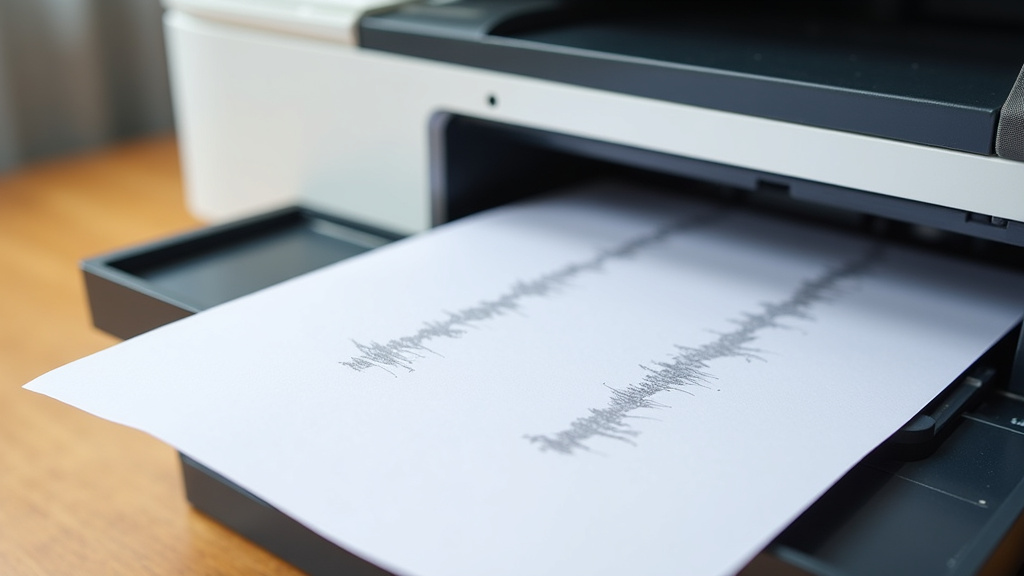
Alignment and Calibration Issues
Sometimes, the printer components aren’t perfectly aligned. This can cause the ink to be laid down incorrectly. It’s like a camera lens that’s slightly out of focus.
What Printer Alignment Does
Printer alignment ensures the print heads and rollers are perfectly positioned. This helps them work together smoothly. When they are out of alignment, you might see vertical lines or banding. This is a common issue with many printer models.
Running an Alignment Utility
Like the cleaning utility, most printers have an alignment function. You can usually find this in the same maintenance section of your printer software. Running this utility recalibrates the printer. It tells the printer exactly where to place the ink. We found that this often resolves banding issues.
This process usually involves printing a special pattern. You might then be asked to scan this pattern or input numbers from it. This helps the software fine-tune the alignment. Make sure you use plain, good-quality paper for this test. The paper quality can affect the alignment results.
The Role of Paper and Environment
Did you know the type of paper you use matters? Even the environment where you print can play a role in streak formation.
Paper Quality and Texture
Using very thin or very textured paper can sometimes cause streaks. The ink might not absorb correctly. Or, the paper might not feed smoothly. This can lead to uneven ink distribution. We found that switching to a standard, good-quality printer paper often helps.
Humidity and Temperature
The printing environment can affect ink. High humidity can cause ink to spread on the paper. Low humidity can lead to static. Static electricity can attract dust. It can also cause paper to curl. Keeping your printer in a stable environment helps. Avoid areas with extreme temperatures or humidity. This is a less common cause, but it’s worth considering if all else fails.
A Quick Checklist for Streak-Free Printing
Here’s a handy checklist to get you started on fixing those streaks. You can tackle most of these yourself in just a few minutes.
- Run the print head cleaning utility 2-3 times.
- Check ink levels on your printer software.
- Replace any very low or old ink cartridges.
- Inspect and clean printer rollers if accessible.
- Run the print head alignment utility.
- Try printing on a different, good-quality paper.
Conclusion
Printer streaks can be a real headache, but you’ve learned they’re usually a sign of simple maintenance needs. Dirty print heads, low ink, or roller issues are common culprits. We’ve found that most of these problems are easily fixed with built-in cleaning or alignment tools. Don’t let streaks stop you from printing important documents. Try running your printer’s cleaning and alignment utilities first. If those don’t do the trick, check your ink levels and clean the rollers. Your printer can often be restored to clear, crisp printing with these steps.
Frequently Asked Questions
How often should I clean my printer’s print heads?
It’s a good idea to run a print head cleaning cycle if you notice streaks or faded print. Most manufacturers suggest this as a regular maintenance task, perhaps once a month, or whenever print quality declines. You don’t need to do it every time you print, but it’s a quick fix when problems arise.
Can old ink cartridges cause streaks?
Yes, old or nearly empty ink cartridges can definitely cause streaks. The ink flow might become inconsistent as the cartridge nears its end. We’ve found that even if your printer software says there’s a little ink left, the quality can drop significantly. Replacing an old cartridge is often the solution.
What if cleaning the print heads doesn’t work?
If running the cleaning cycle multiple times doesn’t solve the streaking issue, you should check other potential causes. Inspect your printer’s rollers for dirt or debris, and ensure your ink cartridges aren’t empty or expired. Also, try running the printer’s alignment utility.
Is it safe to clean printer rollers myself?
Yes, cleaning your printer rollers is generally safe if you follow basic precautions. Make sure your printer is unplugged before you begin. Use a lint-free cloth that is only slightly damp with water or a recommended cleaning solution. Avoid using harsh chemicals or excessive moisture, as this could damage the rollers.
Does the type of paper really affect print streaks?
Sometimes, the paper can play a role. Very thin paper might not handle the ink absorption well, leading to smudging or streaking. Similarly, highly textured paper can sometimes cause uneven ink application. We recommend using standard, good-quality printer paper for most printing tasks to ensure the best results.