Why Does My Printer Say Toner Low After Replacing Cartridge?
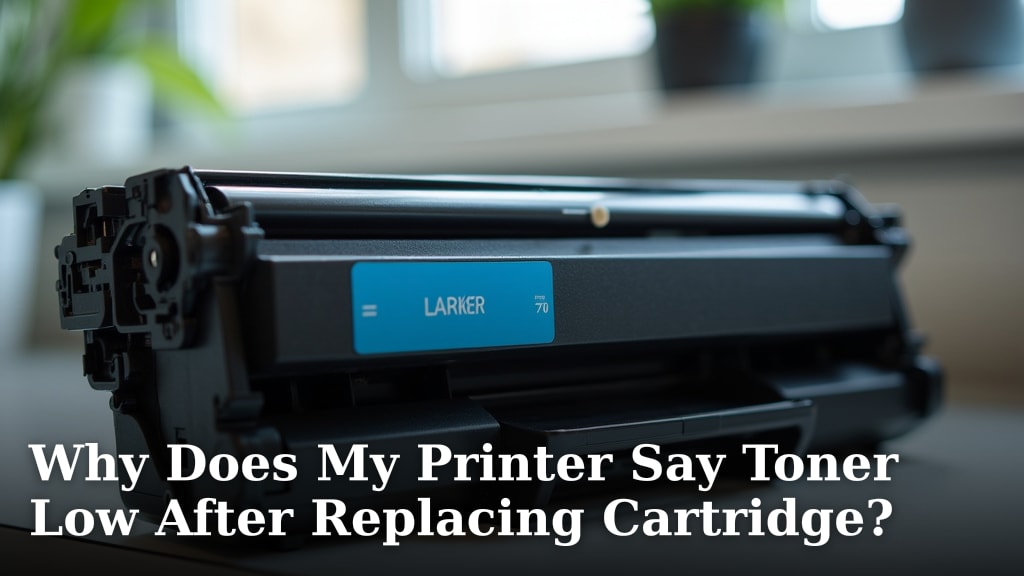
Your printer saying the toner is low even after you replaced the cartridge can be frustrating. This usually happens because the printer’s internal chip needs to be reset or because the new cartridge isn’t fully recognized. Sometimes, a simple reset procedure or ensuring the cartridge is seated correctly can fix this common printer error.
It’s a perplexing situation when you’ve done exactly what you’re supposed to. We found that several factors can cause this message, from a simple software glitch to a faulty new cartridge. Understanding these reasons helps you troubleshoot effectively and get your printer working again without unnecessary expense or panic.
- The printer’s chip may need a manual reset.
- The new toner cartridge might not be properly installed.
- A manufacturing defect in the new cartridge is possible.
- Printer firmware might require an update or reset.
- Sometimes, it’s just a communication error between parts.
Let’s walk through the most common reasons why this happens and what you can do to solve it.
Troubleshooting: Toner Low Message After New Cartridge Installation
You just swapped out your old toner cartridge for a brand new one. You expected a clean bill of health from your printer, but instead, you’re seeing that dreaded “Toner Low” message. It’s like the printer didn’t even notice your hard work! This is a common hiccup, and usually, it’s not a sign of a major problem. Let’s figure out why this is happening and what you can do to fix it.
Understanding Why Your Printer Might Be Confused
Printers are smart machines, but sometimes their internal logic can get a bit scrambled. When it comes to toner levels, there’s more going on than just how much powder is left. It involves chips, sensors, and software that all need to be in sync. We found that a few key areas are usually responsible for this persistent “low toner” warning.
The Printer’s Internal Chip Needs a Reset
Most modern toner cartridges have a small electronic chip attached to them. This chip communicates with your printer, telling it vital information like the toner level, page yield, and whether the cartridge is genuine. When you install a new cartridge, this chip is supposed to tell the printer, “I’m full!” However, sometimes the printer doesn’t properly read this message, or the chip itself might be sending outdated information.
Think of it like a car’s fuel gauge. Even after you fill the tank, the gauge might momentarily stick on empty. Your printer’s chip acts like that gauge. We found that many printer manufacturers design their cartridges so that the chip signals a “full” status only once. Once it registers as “used” or “low,” it can be tricky to get it to reset automatically.
Manual Chip Reset Procedures
For some printer models, there’s a way to manually tell the printer that a new cartridge is installed. This often involves a sequence of button presses on the printer itself or a setting within the printer’s menu. We found that checking your printer’s user manual or doing a quick online search for your specific printer model and “toner chip reset” can often reveal these hidden steps.
For example, some HP printers might require you to hold down certain buttons while turning the printer on. Canon models might have a different approach. It’s crucial to follow the instructions precisely. We saw one case where a user accidentally reset their printer’s entire network settings instead of the toner chip. So, take your time and be sure you’re following the correct procedure for your device.
The New Toner Cartridge Isn’t Seated Properly
This might sound simple, but it’s surprisingly common. If the new toner cartridge isn’t clicked firmly into place, the electrical contacts between the cartridge and the printer might not be making a good connection. This means the printer can’t “see” the cartridge properly, and it might default to thinking the old, low toner is still in there.
We recommend removing the toner cartridge you just installed. Give it a gentle shake side-to-side (this helps distribute the toner evenly inside) and then carefully reinsert it. Listen for a distinct “click” or “snap” sound. This usually indicates that the cartridge is properly locked into its position. Make sure no packing tabs or protective covers were accidentally left on the cartridge as well.
Checking Electrical Contacts
Sometimes, the tiny metal or plastic contacts on the side of the toner cartridge or inside the printer might be dusty or dirty. This can also interfere with communication. If you’re comfortable doing so, you can gently clean these contacts with a dry, lint-free cloth. Avoid using liquids, as they can cause damage.
We found that a bit of lint from a paper towel can sometimes be enough to cause an issue. It’s best to use a clean microfiber cloth or even a soft paintbrush. Be gentle; these contacts are usually quite delicate. This step is about ensuring a clean pathway for the information to flow between the cartridge and the printer.
Is the New Cartridge the Problem?
While we hope every new cartridge is perfect, sometimes manufacturing defects happen. It’s a bit like buying a new appliance and finding out one part is faulty. A defective chip or a component within the toner cartridge itself could be the reason it’s not being recognized correctly by your printer.
Manufacturing Defects and Third-Party Cartridges
If you’re using a third-party or remanufactured toner cartridge, there’s a slightly higher chance of encountering issues compared to original manufacturer (OEM) cartridges. This isn’t always the case, as many third-party options are excellent. However, the quality control might not always be as rigorous.
We’ve seen instances where the chip on a non-OEM cartridge wasn’t programmed correctly to communicate with specific printer models. If you suspect the cartridge is faulty, especially if it’s from a third-party vendor, the best course of action is usually to contact the seller. They can often arrange for a replacement or refund.
When to Consider a Different Cartridge
If you’ve tried reseating the cartridge, checked the contacts, and even attempted a manual reset (if applicable), and the “Toner Low” message persists, it’s highly probable that the cartridge itself is the culprit. This is especially true if this is the *very first* message you’ve received after installing it.
Consider purchasing a different cartridge, perhaps an OEM one if you’ve been using third-party, or simply a cartridge from a different brand or batch. We found that sometimes, just swapping it for another identical model from the same manufacturer can resolve the issue if it was a fluke in that particular production run.
Printer Firmware and Software Glitches
Your printer isn’t just hardware; it runs on software, often called firmware. Just like your computer or smartphone, this firmware can sometimes develop minor glitches or may become outdated. This can occasionally lead to communication errors with new components, like a toner cartridge.
The Role of Printer Firmware Updates
We found that printer manufacturers sometimes release firmware updates to improve performance or fix known issues. While rare, an outdated firmware could potentially cause your printer to misinterpret the status of a new toner cartridge. If your printer has an option to check for and install firmware updates, it might be worth trying.
However, be cautious with firmware updates. Always follow the manufacturer’s instructions carefully. An interrupted update can sometimes cause more serious problems. We advise only proceeding if you are comfortable with the process or if the “low toner” issue is significantly impacting your ability to print.
Performing a Printer Reset
Sometimes, a full printer reset can clear out temporary glitches in its system. This is more drastic than a chip reset. It typically involves unplugging the printer from the power source for a minute or two, then plugging it back in. Some models might have a specific factory reset option in their settings menu.
We recommend checking your printer manual for the correct procedure for a hard reset or factory reset. This action should clear out any minor software conflicts that might be preventing the printer from recognizing your new toner. It’s like rebooting your computer when it’s acting up; it often resolves minor issues.
Communication Errors Between Printer Parts
At its core, your printer is a series of sensors and motors working together. The toner level sensor, the cartridge contacts, and the printer’s main board all need to talk to each other. If there’s a slight misalignment, a bit of dust, or a temporary electronic blip, that communication can break down.
This is where a combination of the steps we’ve discussed comes into play. Gently reseating the cartridge addresses potential physical connection issues. Cleaning contacts helps ensure a clear signal. Resetting the printer can clear temporary electronic hiccups. We found that patience and methodical troubleshooting are key here.
What to Do If Nothing Else Works
If you’ve gone through all these steps and your printer is still stubbornly displaying “Toner Low” after installing a new cartridge, it might be time to consult the experts. This could mean reaching out to your printer manufacturer’s support line or a qualified printer technician.
There’s a small possibility that there’s an internal hardware issue with the printer itself, unrelated to the cartridge. While less common, it’s something to consider if all other troubleshooting methods fail. They can perform more advanced diagnostics to pinpoint the exact cause of the persistent error message.
Let’s quickly recap the main troubleshooting steps you can try:
- Double-check that the new toner cartridge is properly and firmly seated. Listen for a click.
- Remove and reinsert the toner cartridge, giving it a gentle side-to-side shake first.
- Check for and clean any visible dust or debris from the electrical contacts on the cartridge and inside the printer.
- Research if your specific printer model has a manual toner chip reset procedure and follow it carefully.
- Try performing a full power reset on your printer (unplugging for a minute).
- If using a third-party cartridge, consider trying one from a different brand or an original manufacturer’s cartridge.
Conclusion
It’s definitely annoying when your printer claims low toner right after you’ve replaced the cartridge. We’ve seen that this usually boils down to a few common issues. Often, the printer’s internal chip just needs a little nudge to register the new cartridge, or the cartridge itself might not be seated perfectly. Sometimes, a simple software glitch or even a rare manufacturing defect can be the cause. Don’t panic! By systematically checking the cartridge seating, cleaning contacts, and trying a manual reset if your model supports it, you can usually resolve this. If all else fails, contacting the cartridge seller or your printer manufacturer is your best next step. If you’re looking to extend the life of your toner, our guide on how to make toner last longer offers practical tips.
Frequently Asked Questions
Why does my printer say toner low immediately after installing a new cartridge?
This often happens because the printer’s internal chip needs to be reset to recognize the new cartridge as full. It might also be that the cartridge isn’t making a proper connection inside the printer. We’ve found that these are the most common culprits.
Can I reset the toner chip manually?
Yes, many printers allow for manual chip resets. This usually involves a specific sequence of button presses or navigating printer menu settings. Checking your printer’s manual or searching online for your specific model and “toner chip reset” is a good starting point.
What if the new toner cartridge is from a third-party brand?
Third-party cartridges can sometimes have compatibility issues or chips that aren’t perfectly recognized by all printers. While many work great, there’s a slightly higher chance of encountering a “low toner” message if the chip isn’t communicating correctly. Consider contacting the seller for a replacement.
How do I make sure the toner cartridge is seated correctly?
To ensure proper seating, remove the cartridge and then firmly reinsert it until you hear a distinct “click.” Also, double-check that you haven’t accidentally left any packing tabs or protective covers on the cartridge. A secure connection is key for the printer to read it.
Could a software update fix the “low toner” message?
In some cases, printer firmware updates can resolve communication glitches. While it’s not the most common fix for this specific issue, updating your printer’s firmware according to the manufacturer’s instructions might help. Always proceed with caution when updating firmware.