Why Is My Printer Leaving Smudges on Paper?
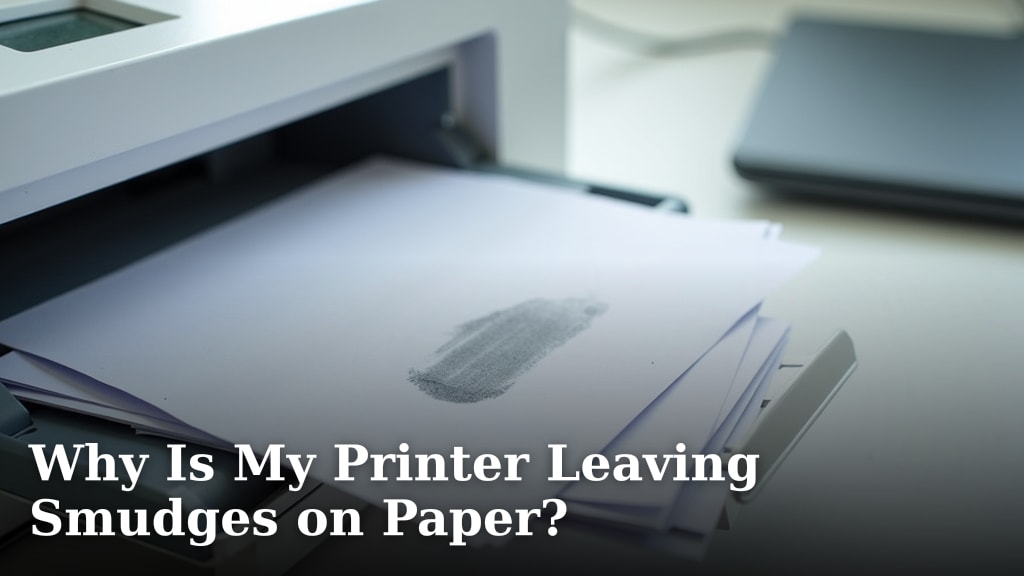
Your printer leaving smudges is usually caused by a few common issues. It often means ink or toner isn’t drying properly or there’s a problem with the printer’s rollers. You might also have a clogged print head. Let’s get your prints looking sharp again.
Smudges can pop up with both inkjet and laser printers. Sometimes it’s just a simple fix like letting the paper dry. Other times, you might need to clean some internal parts of your printer. We’ve researched common causes to help you find the culprit.
- Ink or toner not drying.
- Dirty or damaged printer rollers.
- Clogged print heads on inkjet printers.
- Issues with the fuser unit on laser printers.
- Using the wrong type of paper.
Let’s walk through the most likely reasons why your printer is making a mess and how to fix it.
Troubleshooting Printer Smudges: What’s Causing the Mess?
Seeing smudges on your printed pages can be pretty frustrating. You’ve got a document that needs to look professional, and instead, you’ve got blurry ink or toner marks. Don’t worry, this is a common problem. We’ve researched the most frequent culprits behind printer smudges to help you get back to crisp, clean prints.
Inkjet Printer Smudges: When Ink Won’t Cooperate
Inkjet printers spray tiny droplets of ink onto the paper. If something is off, these droplets can end up where they shouldn’t, leading to smudges.
Ink Not Drying Properly
Sometimes, the simplest explanation is the right one. The ink from your inkjet printer might not be drying fast enough. This can happen if the ink is too wet or the paper isn’t absorbing it well. When the paper moves through the printer or when you touch it too soon, you can easily spread the ink around. This often looks like a faint smear, especially on heavier prints or photos.
Environmental Factors
Believe it or not, the humidity in your room can play a role. If it’s very humid, the ink takes longer to dry. Think about how long it takes for a wet dish to air dry on a humid day versus a dry one. The same principle applies to printer ink.
Ink Cartridge Issues
Low-quality ink or third-party cartridges can sometimes have formulas that don’t dry as quickly. We found that using official manufacturer ink often leads to better drying times. It’s designed to work specifically with your printer model.
Clogged Print Heads: The Ink’s Highway Blocked
The print head is where the ink actually exits the cartridge and lands on the paper. If these tiny nozzles get blocked with dried ink, the ink flow can be disrupted. This disruption can cause uneven printing, which can appear as smudges or gaps in your text and images. It’s like trying to drink through a straw that’s partially blocked – the flow isn’t smooth.
Common Causes of Clogs
The most common reason for clogged print heads is infrequent printer use. When ink sits in the print head for too long without being used, it can dry out. Shaking your printer doesn’t help here; it’s all about regular use or proper maintenance. Manufacturers often suggest printing a test page once a week to keep the ink flowing.
How to Address Clogged Print Heads
Most printers have a built-in cleaning function. You can usually access this through your printer’s control panel or the printer software on your computer. Running a print head cleaning cycle can often clear minor clogs. You might need to run it a couple of times for stubborn blockages. We found this is usually the first step recommended by most printer manuals.
Dirty Rollers: The Paper’s Path
Printers use rubber rollers to grip and move the paper through the machine. If these rollers pick up ink, toner, or even paper dust, they can transfer that residue onto your pages. This often looks like streaks or smudges that run along the path the paper takes. Think of a painter’s roller that has dried paint on it – it will leave marks where it rolls.
Identifying Dirty Rollers
Inspect the rollers if you can see them. Look for any dark marks or buildup. You might be able to access some of them by opening the paper tray or the printer’s cover. Sometimes, the marks are faint, so you might need good lighting.
Cleaning Printer Rollers
You can often clean these rollers yourself. Dampen a lint-free cloth with water or a printer-specific cleaning solution. Gently wipe the rollers to remove any debris. Make sure the printer is unplugged and turned off before you do this. Allow the rollers to dry completely before printing again. Some guides suggest using a cotton swab dipped in isopropyl alcohol for tougher spots, but be gentle!
Laser Printer Smudges: Toner Troubles
Laser printers use toner, which is a fine powder, to create prints. Smudges in laser printers often point to issues with how the toner is applied or fused onto the paper.
Toner Not Fusing Properly
In a laser printer, toner is applied to the paper and then heated by a component called the fuser unit. This heat melts the toner particles, permanently bonding them to the paper. If the fuser isn’t hot enough or isn’t applying enough pressure, the toner won’t fuse correctly. This can result in smudges that rub off easily, almost like pencil marks. Many experts suggest checking the fuser for wear and tear.
Fuser Unit Issues
The fuser unit is essentially a set of rollers and a heating element. Over time, the rollers can wear down or get damaged. A damaged fuser can lead to poor toner adhesion. You might hear unusual noises from the printer when the fuser is having trouble. If you see smudges that look like the toner is just sitting on top of the paper, the fuser is a prime suspect.
Troubleshooting the Fuser
Unfortunately, fuser units are often complex parts and may require professional attention or replacement. If your printer is still under warranty, contact the manufacturer. For older printers, you might find replacement fuser kits, but installation can be tricky. We found that replacing the fuser is a common fix for persistent toner smudging issues in laser printers.
Toner Cartridge Problems
The toner cartridge itself can also be a source of smudges. If the cartridge is faulty, has a leak, or isn’t seated correctly, it can cause toner to spill inside the printer. This spilled toner can then be picked up by rollers or the paper path, leading to smudges on your prints.
Leaking Cartridges
When you install a new toner cartridge, inspect it for any signs of damage or leaks. If you see loose toner powder around the cartridge, it might be the cause of your smudges. Carefully clean up any spilled toner following the manufacturer’s instructions. Some suggest using a dry, lint-free cloth only.
Cartridge Installation and Type
Ensure the toner cartridge is properly installed and locked into place. A cartridge that isn’t seated correctly can cause all sorts of printing problems. Also, using non-compatible or refilled cartridges can sometimes lead to smudging, as the toner quality might differ. We found that sticking to manufacturer-recommended cartridges often prevents these kinds of issues.
Paper Problems: It’s Not Always the Printer
Sometimes, the problem isn’t with the ink or toner, but with the paper itself. The type of paper you use can significantly impact print quality.
Using the Wrong Paper Type
Different printers and inks/toners are designed to work with specific paper types. If you’re using paper that’s too thick, too glossy, or not designed for your printer, it can cause smudges. For instance, highly glossy photo paper might not absorb inkjet ink quickly, leading to smearing. Similarly, some laser printers might struggle to fuse toner properly on very thick cardstock.
Inkjet vs. Laser Paper
Inkjet paper is designed to absorb liquid ink. Laser paper is typically smoother and coated to handle the heat and pressure of toner fusing. Using the wrong type can lead to poor toner adhesion or ink bleed-through and smudging. Always check your printer manual for recommended paper types.
Paper Weight and Finish
Heavier papers need more heat to fuse toner correctly in laser printers. If your printer can’t provide enough, the toner won’t stick well. For inkjet printers, overly smooth or non-porous surfaces can prevent ink from drying, causing smudges. We found that using the recommended paper weight and finish is a simple but effective way to avoid many printing defects.
Quick Checklist for Smudge Solutions
If you’re dealing with printer smudges, here’s a quick rundown of things to check:
- Run a print head cleaning cycle (inkjet) or check toner cartridge (laser).
- Clean the printer rollers with a lint-free cloth.
- Ensure you’re using the correct paper type for your printer.
- Allow printed pages to dry completely before handling.
- Check for any signs of leaks from your ink or toner cartridges.
- If the problem persists, consider consulting your printer’s manual or support.
Conclusion
Dealing with printer smudges can be a real headache, but you’ve learned that the cause is usually straightforward. We found that issues like ink not drying, clogged print heads, dirty rollers, fuser problems in laser printers, or even the wrong paper type are the most common culprits. Don’t let smudges ruin your prints. Start by trying a print head cleaning cycle or cleaning your rollers. If that doesn’t work, double-check your paper type. Your next step should be consulting your printer’s manual for model-specific advice or contacting customer support.
Frequently Asked Questions
Can humidity really cause my printer to smudge?
Yes, high humidity can slow down ink drying time on paper. If the ink hasn’t dried completely, it’s more likely to smear when handled or moved through the printer. We’ve found that printing in a drier environment can sometimes resolve this issue.
How often should I run a print head cleaning cycle?
Most manufacturers recommend running a print head cleaning cycle if you notice print quality issues or if you haven’t used your printer in a while. We found that doing this about once a week or whenever you see faint lines or smudges can help prevent clogs.
Are third-party ink cartridges more likely to cause smudges?
Sometimes, yes. Third-party or refilled cartridges may use ink formulas that don’t dry as quickly or bond as well with the paper. We researched this and found that using genuine manufacturer ink often results in better drying and fewer smudging problems.
What’s the difference between inkjet and laser paper, and why does it matter for smudges?
Inkjet paper is designed to absorb liquid ink, while laser paper is smoother and can withstand the heat and pressure needed to fuse toner. Using the wrong type means ink might not dry and smudge, or toner might not stick properly, leading to smudges. We found that using the correct paper type is essential.
If I see smudges, should I immediately replace my ink or toner?
Not necessarily. Before buying new cartridges, try cleaning your printer’s rollers and running a print head cleaning cycle for inkjet printers. We found that these simple maintenance steps often fix smudging issues without needing to purchase new supplies.