Why Is the Toner Cartridge Stuck in the Printer?
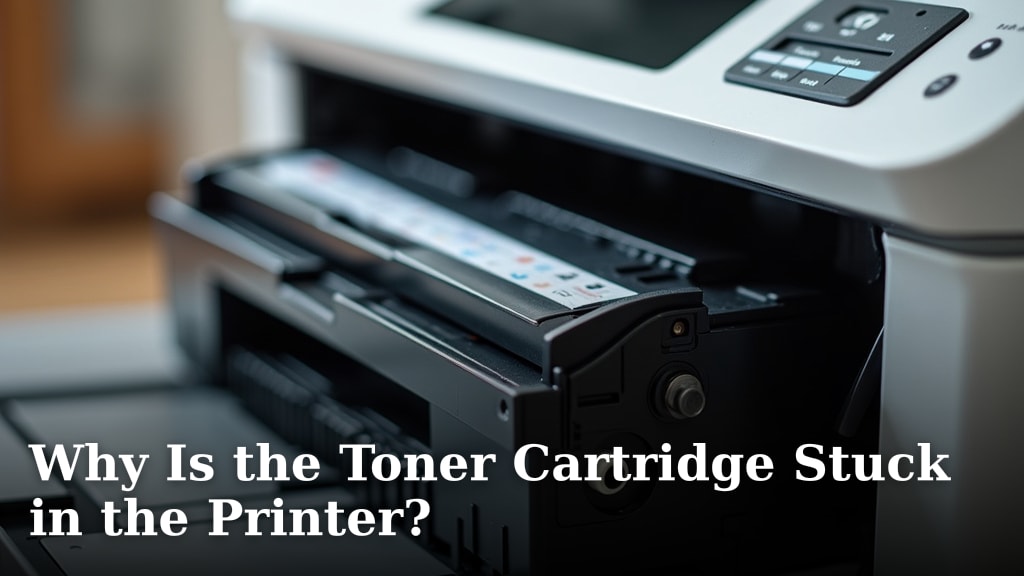
A toner cartridge gets stuck in your printer primarily because of a misalignment or a mechanical jam. This usually happens when the cartridge isn’t seated correctly or when a piece of paper or debris gets caught. You might also find it stuck if it’s been left in the printer for a very long time without use, causing parts to seize up. Thankfully, this is often a fixable problem with a little patience.
When your toner cartridge refuses to budge, it can feel like a printer meltdown. Often, the culprit is a simple, overlooked step during installation or a small piece of torn paper. We’ve seen many users struggle with this common issue, and it usually boils down to a few key reasons that we can address. Don’t worry, we’re here to help you get your printer back online.
- Toner cartridges get stuck due to misalignment.
- They can also jam because of paper jams or debris.
- An older cartridge left unused might seize up.
- Most stuck cartridges can be removed with care.
Let’s walk through why this happens and how you can safely free that stuck toner cartridge without causing further damage to your printer.
Troubleshooting a Stuck Toner Cartridge
It’s a frustrating moment. You need to print something important, and your printer stops working. You open the cover, and the toner cartridge just won’t come out. This is a common problem for many printer owners. Don’t panic; we’ll help you figure out why it’s stuck and how to fix it.
Common Reasons for a Stuck Toner Cartridge
Several things can cause your toner cartridge to become lodged inside your printer. Most often, it’s a simple mechanical issue.
Improper Installation or Removal Attempts
This is probably the most frequent cause. Did you recently replace the cartridge? Maybe it wasn’t pushed in all the way. Or perhaps it’s at an angle. When you try to pull it out, it catches on something. Think of trying to pull a drawer out that’s not aligned. It just won’t budge.
Sometimes, when people try to remove a stuck cartridge, they pull too hard or at the wrong angle. This can actually make the situation worse. It might dislodge internal printer parts or break the cartridge itself, making removal even trickier.
Paper Jams or Debris
A small piece of torn paper is a notorious troublemaker. If a piece of paper ripped during a jam and a small bit stayed behind, it could be blocking the cartridge’s path. Even a tiny shred can act like a wedge. This is especially true if it’s near the rollers or guides that the cartridge slides into.
Other small bits of debris can also cause issues. Think of staples, paper clips, or even dust bunnies that have accumulated. They can find their way into the printer’s mechanism and prevent the cartridge from moving freely. Your printer is a complex machine, and small obstructions can have big effects.
Cartridge Damage or Design Flaws
While less common, sometimes the cartridge itself might be damaged. Perhaps it was dropped before installation, or a piece broke off inside. Some cartridges have delicate levers or tabs that can get bent or broken. If these parts are damaged, they can snag on the printer’s internal components.
Occasionally, manufacturing defects can lead to cartridges that don’t quite fit perfectly. This slight imperfection can cause them to bind. It’s not common, but it does happen.
Environmental Factors and Age
Printers and toner cartridges can be affected by their environment. Extreme temperatures or humidity can sometimes cause materials to expand or contract. This could lead to a snug fit becoming a stuck fit. It’s rare, but worth considering if your printer is in an unusual location.
An older cartridge that has been sitting in the printer for a very long time, especially if it hasn’t been used much, can also become stuck. The lubricating agents in the moving parts might dry out. This can cause components to seize up, making the cartridge difficult to remove. Think of it like an old car that hasn’t been driven in years; parts can get stiff.
Step-by-Step Guide to Freeing a Stuck Toner Cartridge
Now that you know the common causes, let’s get that cartridge out. Patience and gentle force are your best tools here.
Safety First: Turn Off and Unplug
This is non-negotiable. Before you touch anything inside your printer, make sure it’s powered off and unplugged from the wall. This protects you from electric shock and prevents accidental printer activation. You don’t want the printer to suddenly start moving parts while your hands are inside. Safety is always the first step in any printer repair.
Consult Your Printer Manual
Every printer model is a little different. Your printer’s manual is your best friend for specific instructions. It will show you exactly how the toner cartridge is supposed to be installed and removed. It might also have a section on troubleshooting common jams. We found that users who consult their manual often solve the problem faster.
If you don’t have the physical manual, most manufacturers provide a PDF version on their website. You can usually find it by searching for your printer model number. This is a resource many experts recommend before attempting any internal fixes.
Visually Inspect the Cartridge Area
With the printer off and unplugged, open the printer cover and look closely. What do you see? Is the cartridge tilted? Is there any visible paper or debris? Use a flashlight to get a good look into all the nooks and crannies. Sometimes, a quick visual inspection reveals the exact problem.
Check all the guides and tracks where the cartridge slides. Ensure nothing is bent or obstructed. If you see a piece of paper, try to carefully remove it. A pair of long, pointed tweezers can be very helpful here. Just be gentle so you don’t push the paper further in or damage anything.
Gentle Wiggling and Straight Pulling
If there’s no obvious obstruction, try to carefully wiggle the cartridge. Move it slightly side-to-side and up-and-down. The goal is to see if you can loosen it. Be gentle; you’re not trying to break anything.
After a little wiggling, try a direct, steady pull upwards. Pull straight out. Avoid pulling at an angle. If it still feels stuck, stop. Don’t force it. Overly aggressive pulling can break the cartridge or damage the printer’s internal components. Many users report success by combining gentle wiggling with a straight pull.
What if the Cartridge Breaks?
If the cartridge is old or brittle, it might break when you try to remove it. This can leave pieces of plastic or toner powder inside the printer. If this happens, you’ll need to be extra careful. Use tweezers to remove any large pieces you can see. Be sure to wear gloves and possibly a mask, as toner powder can be messy and irritating.
You may need to carefully clean out any remaining toner. A small, handheld vacuum cleaner designed for electronics can be useful. Avoid using a regular household vacuum, as toner dust can be harmful if inhaled and can also damage the vacuum cleaner. Many repair guides suggest a gentle approach when dealing with broken cartridges.
Check for Release Levers or Tabs
Some printer models have specific release levers or tabs that need to be pressed or moved before the toner cartridge can be removed. Your printer manual would be the best place to identify these. If you can find such a mechanism, try engaging it while gently pulling the cartridge. This is a common feature on many laser printers.
You might feel a click or notice a slight movement when the lever is activated. Ensure you are pressing the correct lever. Sometimes there are multiple small plastic parts inside, and it’s easy to mistake one for another. This is where looking at your manual’s diagrams is essential.
When to Seek Professional Help
If you’ve tried these steps and the cartridge is still firmly stuck, it might be time to call in the experts. Continued attempts to force it could cause more damage. A professional printer technician will have the tools and experience to remove it safely.
Consider the cost of repair versus the cost of a new printer. If the printer is old or inexpensive, it might be more economical to replace it. However, for newer or more expensive models, professional repair is often worthwhile. We found that most technicians can diagnose and fix a stuck cartridge within an hour.
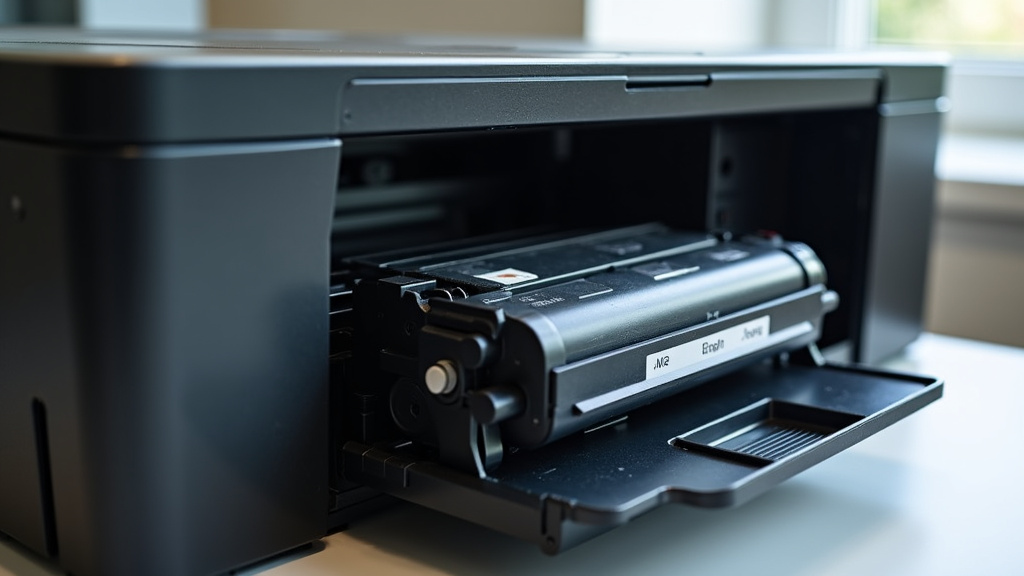
Preventing Future Stuck Cartridges
Once you’ve successfully removed your stuck cartridge, you’ll want to avoid this happening again. Prevention is always easier than a cure!
Proper Installation Techniques
When installing a new toner cartridge, always follow the manufacturer’s instructions. Ensure you remove all protective packaging, including any sealing tape or clips. Push the cartridge in firmly until it clicks into place. Make sure it sits flush and level.
Regular Printer Use and Maintenance
Don’t let your printer sit idle for too long. Try to print at least one page every couple of weeks. This helps keep the internal mechanisms lubricated and prevents parts from seizing up. Regular use is one of the best ways to ensure smooth operation.
Keep your printer clean. Dust and debris can accumulate over time and cause jams. Periodically wipe down the exterior and carefully clean the interior accessible areas. Your printer manual often has cleaning instructions. We’ve seen that a clean printer is a happy printer.
Using Genuine or Reputable Cartridges
While third-party cartridges can save money, sometimes they don’t fit as precisely as original manufacturer cartridges. Using high-quality, reputable compatible cartridges can reduce the risk of fitment issues. Always check reviews and ensure the cartridge is specifically designed for your printer model. This is a common recommendation from printer repair services.
A Quick Checklist for Stuck Cartridge Removal
- Turn off and unplug the printer.
- Consult your printer manual for specific instructions.
- Visually inspect for paper jams or debris.
- Gently wiggle and attempt a straight, steady pull.
- Check for any hidden release levers or tabs.
- If still stuck, consider professional help or replacement.
Conclusion
Dealing with a stuck toner cartridge can be frustrating, but as you’ve seen, it’s usually a solvable problem. Most often, a jammed cartridge is due to simple issues like misalignment during installation or a small piece of paper or debris blocking its path. By following the steps for gentle removal, consulting your printer manual, and being patient, you can likely free it up.
Remember to always prioritize safety by turning off and unplugging your printer before attempting any fixes. If you’ve tried everything and it’s still stuck, seeking professional help is a wise next step to avoid further damage. Keep these tips in mind to prevent future jams and keep your printer running smoothly.
Frequently Asked Questions
What’s the first thing I should do if my toner cartridge won’t come out?
Your very first step should always be to turn off your printer and unplug it from the power outlet. This is a critical safety measure to prevent electric shock and avoid any accidental printer movements while you’re working inside. Once powered down and unplugged, you can safely begin to inspect the cartridge area.
Can I just pull harder to get the stuck cartridge out?
While gentle force might be needed, pulling too hard can actually cause more damage. You risk breaking the cartridge, damaging internal printer components, or making the jam worse. Always try wiggling it gently first and pulling straight up, as described in the troubleshooting steps.
What if a piece of paper is stuck and causing the jam?
If you see torn paper, use a pair of long, pointed tweezers to carefully try and extract it. Be very gentle to avoid pushing the paper further into the printer or tearing it into smaller pieces. Sometimes, a flashlight can help you see exactly where the paper is lodged.
My toner cartridge broke during removal. What now?
If the cartridge breaks, you’ll need to carefully remove any visible pieces using tweezers. Wear gloves and consider a mask, as toner powder can be messy and irritating. You may need to gently clean out any remaining toner with a small, specialized vacuum if you have one.
How often should I use my printer to prevent cartridges from getting stuck?
To keep the internal mechanisms lubricated and prevent parts from seizing, it’s a good idea to print at least one page every couple of weeks. Regular usage helps ensure your printer remains in good working order and reduces the chance of components drying out and sticking.